Best GTA 6 Settings to Change First on PS5
Four GTA 6 settings are worth changing first, covering the always-on minimap, the Classic sprint layout, subtitle size, and muted licensed music.
Change these early
Grand Theft Auto VI on PS5 asks a few setup questions, then puts the rest into a Settings menu with seven tabs: Control Scheme, Controller, Gameplay, Display, UI, Camera and Audio. Press L1 or R1 to switch tabs. Setup picks can change later in Settings.
Quick answer: Set Navigation Experience to "Minimap Always On", switch to the Classic control scheme to sprint on Cross, pick a Subtitles size (they start off), and turn on Audio > Mute Licensed Music if you stream.
Sort these before anything else.
Navigation Experience: pick "Minimap Always On" if you do not want the minimap popping in and out. The other two show the minimap, or the minimap and compass, only when the game calls for them.
Control scheme: defaults put run and sprint on L3; Classic moves it to Cross, which suits you if clicking the stick gets tiring.
Subtitles: turn them on to catch every line with the sound low. Size, speaker names and a background are all adjustable.
Mute Licensed Music, in the Audio tab, mutes any licensed music; change it if you stream.
Setup screens
The setup screens come up before the game begins, in a fixed order.
Decide on Screen Narration. It stays off by default; pressing Square on the opening screen turns it on.
Choose your Navigation Experience. "Minimap (Dynamic)" shows the minimap when the game calls for it, "Minimap & Compass (Dynamic)" does the same for both, and "Minimap Always On" keeps the minimap up the whole time.
Set UI Text Size. Small is the default, with Medium, Large and X Large above it.
Pick a Subtitles size. It starts at Off, and you can choose Small, Medium or Large.
Run HDR Calibration. The defaults are Max Brightness 600, Black Levels 50 and Paper White 50. Press R1 to cycle the three test images and Triangle to hide the UI.
Read the Finish Setup screen and confirm. It shows this message: "The default controls for GTAVI now use L3 to run and sprint, but can be changed at any time." That line cues a later Control Scheme visit for Classic sprint on Cross.
Gameplay tab
This is the Gameplay tab: 25 rows covering combat, movement, button behavior and a few driving options.
| Setting | Default | Group |
|---|---|---|
| Targeting | Partial (2 of 3) | Combat |
| Aim Assist Strength | 4 | Combat |
| Shooting Assist | On | Combat |
| Drive-By Assist | On | Combat |
| Quick Draw | On | Combat |
| Cover Selection | Camera & Movement | Combat |
| Holster in Vehicle | Automatic | Combat |
| Movement Speed | Walk (1 of 4) | Movement |
| Combat Movement Speed | Fast Walk (2 of 3) | Movement |
| Stand & Sprint | Off | Movement |
| Tap Assist | Off (5 choices) | Accessibility |
| Hold Delay | Off | Accessibility |
| Hold Assist | Off | Accessibility |
| Directional Button Actions | Hold | Hold/toggle |
| Aiming | Hold | Hold/toggle |
| Interact | Hold | Hold/toggle |
| Loadout | Hold | Hold/toggle |
| Nitrous | Hold | Hold/toggle |
| Fishing | Rotate (1 of 3) | Hold/toggle |
| Simplified Mini Games | Off | Other |
| Auto Drive | Restricted (1 of 2) | Other |
| Auto Equip Helmet | Off | Other |
Targeting sits at Partial: "Partial: Aiming will move towards a nearby target but will not lock on". Aim Assist Strength sits at 4.
Movement Speed defaults to Walk, the opening choice of four, and Combat Movement Speed to Fast Walk, the second of three.
Tap Assist helps if repeated presses are hard on your hands. It has five choices; the game explains that "a single press can register as 2, 3, or 4 presses, or can be swapped to a hold". Hold Delay and Hold Assist sit next to it, both off. Aiming, Interact, Loadout, Nitrous and Directional Button Actions all default to Hold.
Simplified Mini Games stays off by default. Turning it on "simplifies the interactions needed for situations such as exercising, hotwiring, and basketball".
UI tab
The UI tab, the longest at 70 rows, starts with Language (English by default, with 12 choices), UI Text Size, Color Adjustments (off), Map Blip Size, Minimap Blip Size and In-World Marker Size.
Subtitles and captions
Subtitles here reads Mission Only, the second of three choices. The same group has Closed Captions, Size, Speaker Names and Background, and Background starts off.
Navigation
With Minimap Always On picked, this group shows Minimap On (1 of 3), Minimap Size Default and Compass Off (3 of 3). GPS Route, GPS Turn Indicators, In-World Markers and Door Markers are all on. GPS Turn Indicators carries the note "Turn indicators will display on all roads".
Reticle
The Reticle group has Persistent Center Dot, Reticle Hit Markers, Reticle Size, Reticle Shape (Complex by default), Aiming Reticle Visibility and Projectile Arc. Persistent Center Dot "may aid with motion sickness", the game notes.
Screen elements
The rest of the tab shows or hides: Threat Indicators, Damage Region Highlights, Help Text, Ticker Feed, Money, Wanted Stars, Heat Indicators, Challenges notifications, Mini Game UI, Activity Timers & Stats and Units of Measurement. Mini Game UI covers the "instructional prompts... such as hotwiring, lockpicking, and cloning keys".
Audio tab
The Audio tab has 15 rows. Mute Licensed Music stays off by default, and the game describes it as "Mutes any licensed music. Captions will still display for music when turned on and licensed music is muted."
Mono Audio: Off. Tinnitus Reduction: Off. Controller Speaker: On. Controller Cop Scanner: Off. GPS Voice: Off (4 of 4). Vehicle Radio: Default.
GPS Voice stays off out of the box. Below these rows are the volume sliders: Master Volume (set to 10), Dialogue, Music and Media.
Display and controller
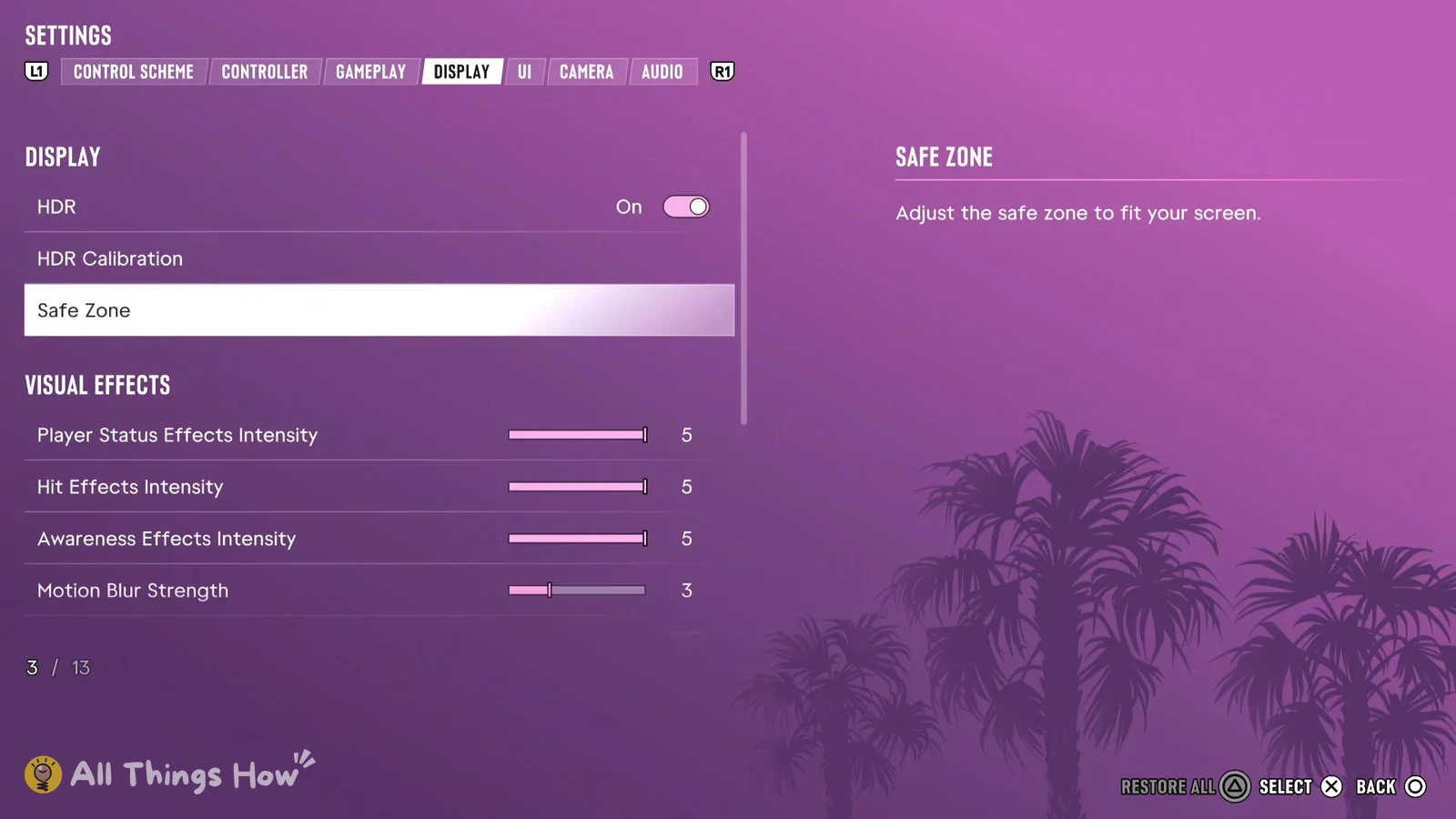
HDR starts on in the Display tab, alongside HDR Calibration and Safe Zone. The two Visual Effects sliders, Player Status Effects Intensity and Hit Effects Intensity, both begin at 5; lower them if fight or hurt effects feel like too much. Redo it at HDR Calibration if the picture looks too dark or washed out.
Camera covers Height (On Foot) at Medium, Horizontal and Vertical Follow Speed at 10, and Height (All Vehicles) at Medium.
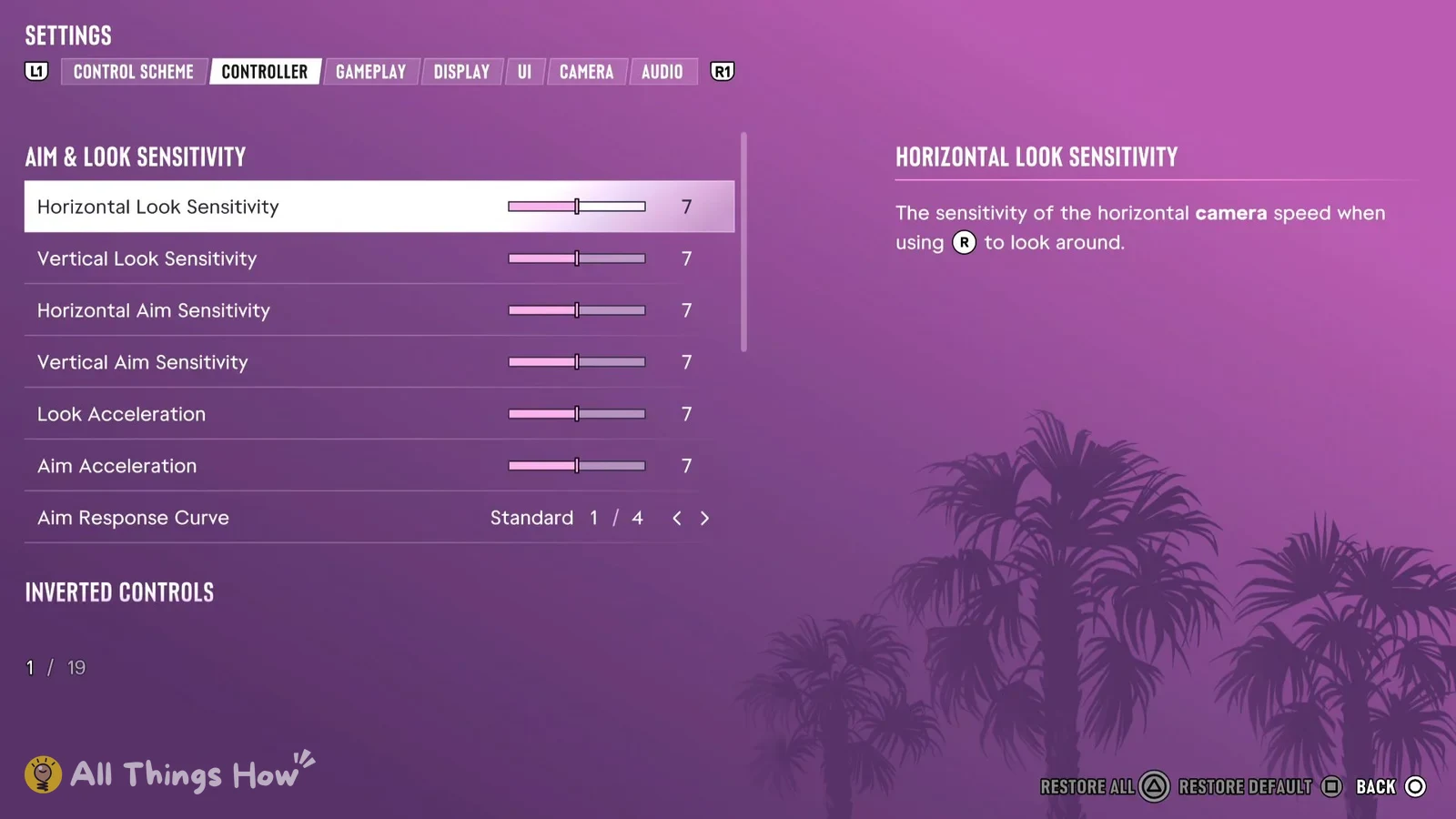
The Controller tab has 19 rows. Look and aim sensitivity start at 7 and Aim Response Curve at Standard, with rows for inverted controls, Vibration & Haptics Strength, stick deadzones, Adaptive Triggers Resistance and Vibration, and Adaptive Speed Limiter. Touch Pad Button: Map; pressing it opens the map. Could turn down Adaptive Triggers Resistance if DualSense triggers feel stiff.