GTA 6 Accessibility Options on PS5: Where Each Setting Lives
GTA 6 spreads its accessibility settings across six Settings tabs rather than one menu, so this guide maps where each option lives on PS5.
Accessibility Options
GTA 6 on PS5 does not keep its accessibility settings in one place. I think the split layout is the one real flaw in the settings design, since players who need these options most have to hunt through six tabs to find them.
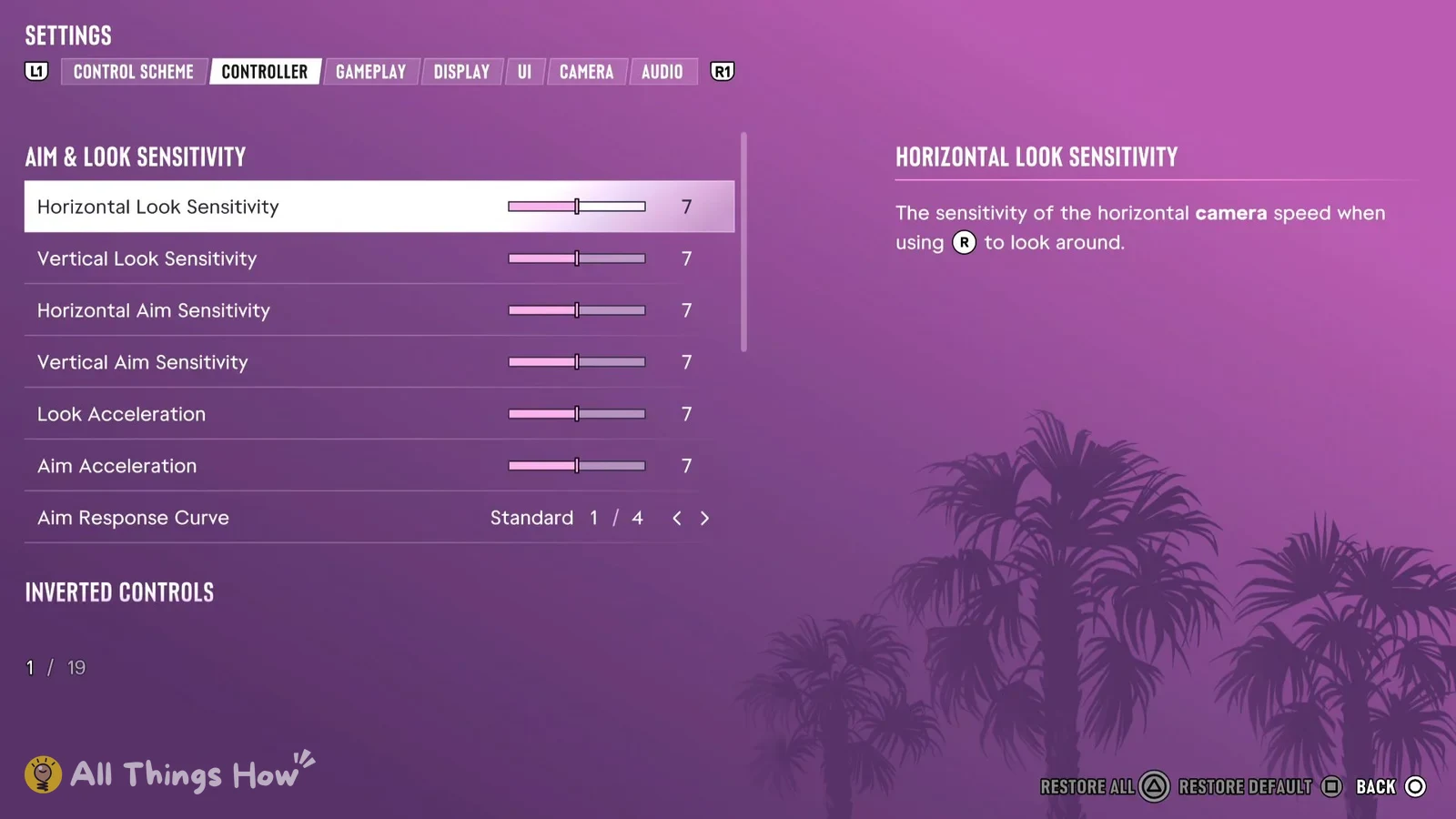
GTA 6 accessibility settings open through the pause menu, and GTA 6 players should pause, open Settings, and press L1 or R1 to switch tabs. Try to work through the tables one group at a time. A larger text size could make the menus far easier to read.
First Start Accessibility Setup
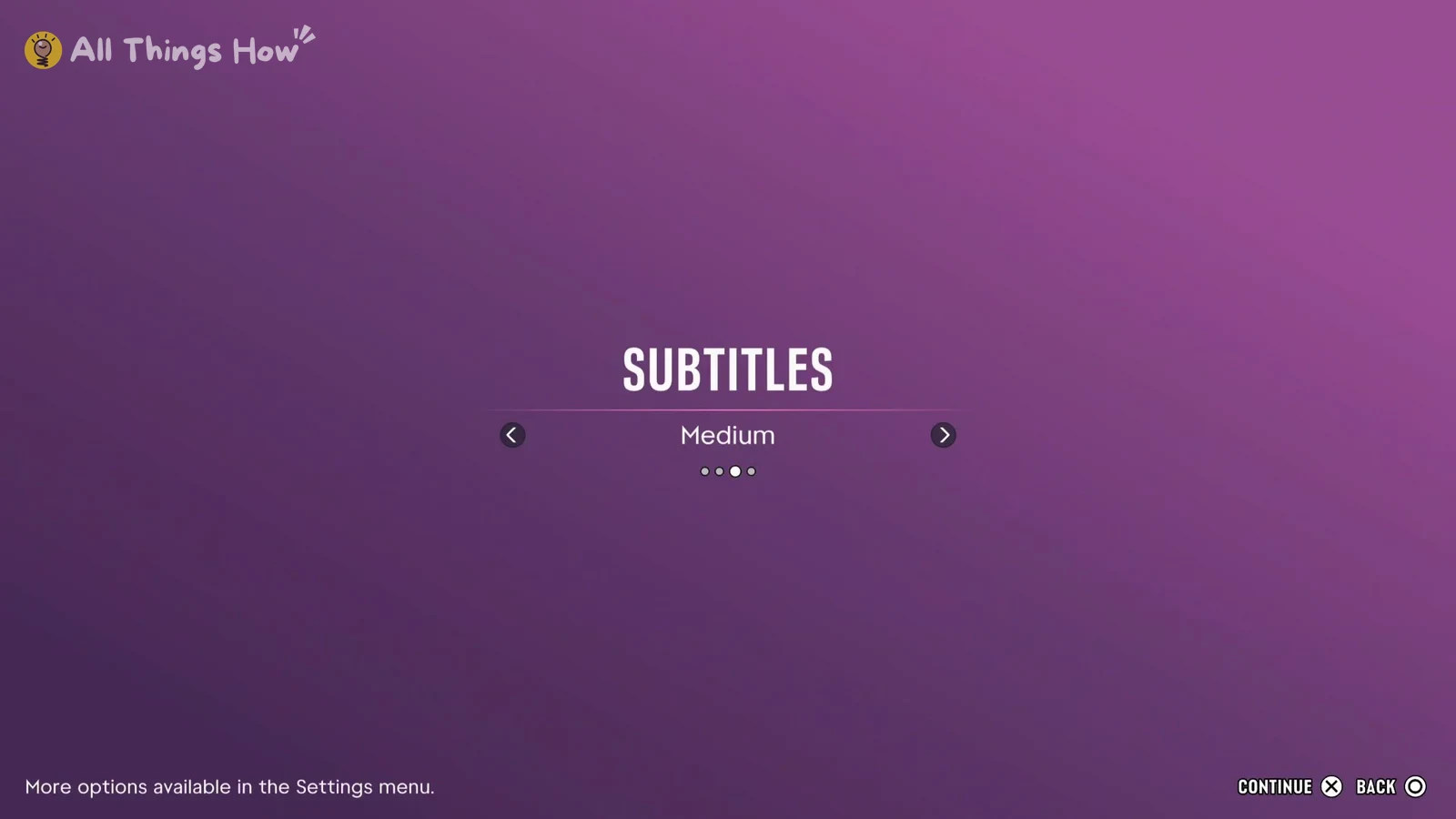
GTA 6 first-start setup asks you to set three things before the game begins, and GTA 6 players can change all of them later in Settings, so nothing you pick here locks in. GTA 6 Subtitles can read Off (Default), Small, Medium, or Large, and the screen adds the line "More options available in the Settings menu."
Open Settings
GTA 6 players should press L1 or R1 to move between tabs, and no tab carries the name Accessibility, so go to the tab listed for the setting you want in the tables below.
Vision and Reading Options
GTA 6 vision and reading options all sit in the UI tab, split between two groups headed SCALING and READABILITY and SUBTITLES and CAPTIONS.
| Setting | Where | Default | Choices |
|---|---|---|---|
| Language | UI tab | English | 12 |
| UI Text Size | UI tab | Small | 4 |
| Color Adjustments | UI tab | Off | 4 |
| Map Blip Size | UI tab | Default | 2 |
| Minimap Blip Size | UI tab | Default | 2 |
| In-World Marker Size | UI tab | Default | 2 |
| Subtitles | UI tab | Set by first-start choice | 3 |
| Closed Captions | UI tab | Off | 4 |
| Size | UI tab | Set by first-start choice | 3 |
| Speaker Names | UI tab | Off | On/Off |
| Background | UI tab | Off | 3 |
Motor and Input Options
GTA 6 motor and input options sit in the Gameplay tab, where a group headed ACCESSIBILITY holds Tap Assist, Hold Delay, Hold Assist, Focus, Directional Button Actions, Aiming, Interact, and Loadout.
| Setting | Where | Default | Choices |
|---|---|---|---|
| Tap Assist | Gameplay tab | Off | 5 |
| Hold Delay | Gameplay tab | Off | 11 |
| Hold Assist | Gameplay tab | Off | 4 |
| Focus | Gameplay tab | L3 + R3 | 2 |
| Directional Button Actions | Gameplay tab | Hold | 2 |
| Aiming | Gameplay tab | Hold | 2 |
| Interact | Gameplay tab | Hold | 2 |
| Loadout | Gameplay tab | Hold | 2 |
| Setting | Where | Default |
|---|---|---|
| Simplified Mini Games | Gameplay tab | Off |
| Targeting | Gameplay tab | Partial (3 choices) |
| Aim Assist Strength | Gameplay tab | 4 |
| Shooting Assist | Gameplay tab | On |
| Drive-By Assist | Gameplay tab | On |
GTA 6 game says Simplified Mini Games "simplifies the interactions needed for situations such as exercising, hotwiring, and basketball".
Motion and Comfort Options
| Setting | Where | Default |
|---|---|---|
| Persistent Center Dot | UI tab > Reticle | Off |
| Camera Shake | Camera tab > Comfort | On |
| Weapon Sway | Camera tab > Comfort | On |
| Camera Bob | Camera tab > Comfort | 10 (slider) |
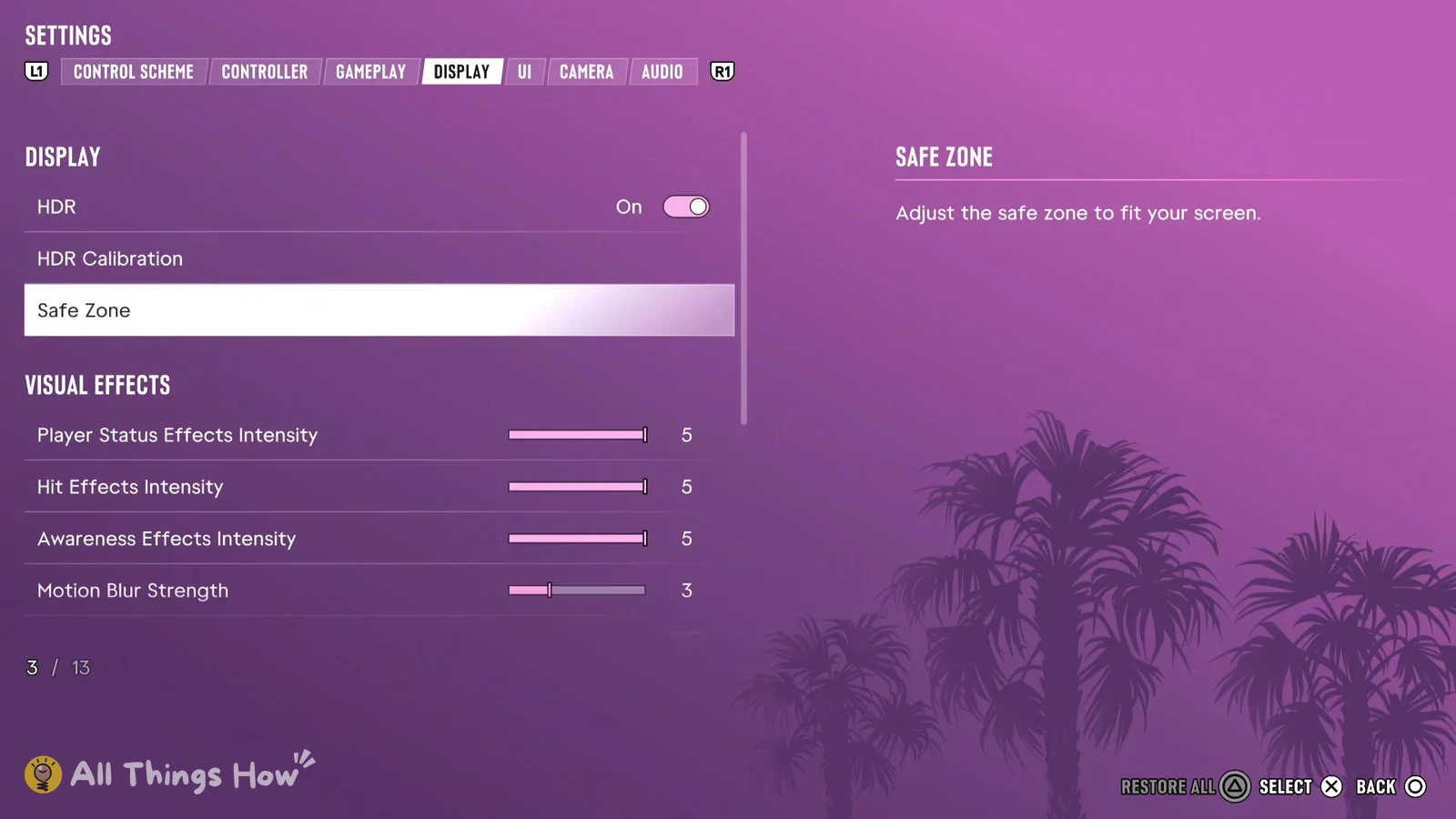
| Motion Blur Strength | Display tab | 3 (slider) |
| Flashbang | Display tab | Bright (2 choices) |
| Brightness Reduction | Display tab | Off |
| Player Status Effects Intensity | Display tab | 5 |
| Hit Effects Intensity | Display tab | 5 |
| Awareness Effects Intensity | Display tab | 5 |
| Focus Trail Colorblind Mode | Display tab | Off |
| Dismemberment | Display tab | On |
| Blood & Gore Intensity | Display tab | High (3 of 3) |
GTA 6 Persistent Center Dot carries the description "Shows a persistent dot in the center of the screen that may aid with motion sickness."
Hearing and Audio Options
| Setting | Where | Default |
|---|---|---|
| Mono Audio | Audio tab | Off |
| Tinnitus Reduction | Audio tab | Off |
| Controller Speaker | Audio tab | On |
| Controller Cop Scanner | Audio tab | Off |
| GPS Voice | Audio tab | Off (4 of 4) |
| Threat Indicators | UI tab > Combat | On |
| Damage Region Highlights | UI tab > Combat | On |