GTA 6 Camera Settings on PS5 Turn Off Shake
GTA 6 camera settings sit in a dedicated Camera tab covering shake, weapon sway, height, and follow speed, five presses of R1 from the Settings menu.
GTA 6 Camera Settings
GTA 6 camera settings live in one place on PS5, a Camera tab inside the pause menu Settings. GTA 6 camera settings cover shake, weapon sway, height, and follow speed, and this tab holds nearly every camera row the game offers.
GTA 6 camera settings open fast once you know the path. Open the pause menu, pick Settings, and press R1 five times to reach the Camera tab. Try to change one row at a time, then play for a few minutes before you change another row.
Open Camera Tab
GTA 6 camera settings start with the pause menu and the Settings row. Open the pause menu and select Settings, and a row of tabs runs across the top of the screen, starting with Control Scheme. Starting at Control Scheme, tap R1 five times to get to Camera. Tap R1 too many times and you land on Audio, so watch the tab names as they slide past, and L1 walks back if you overshoot.
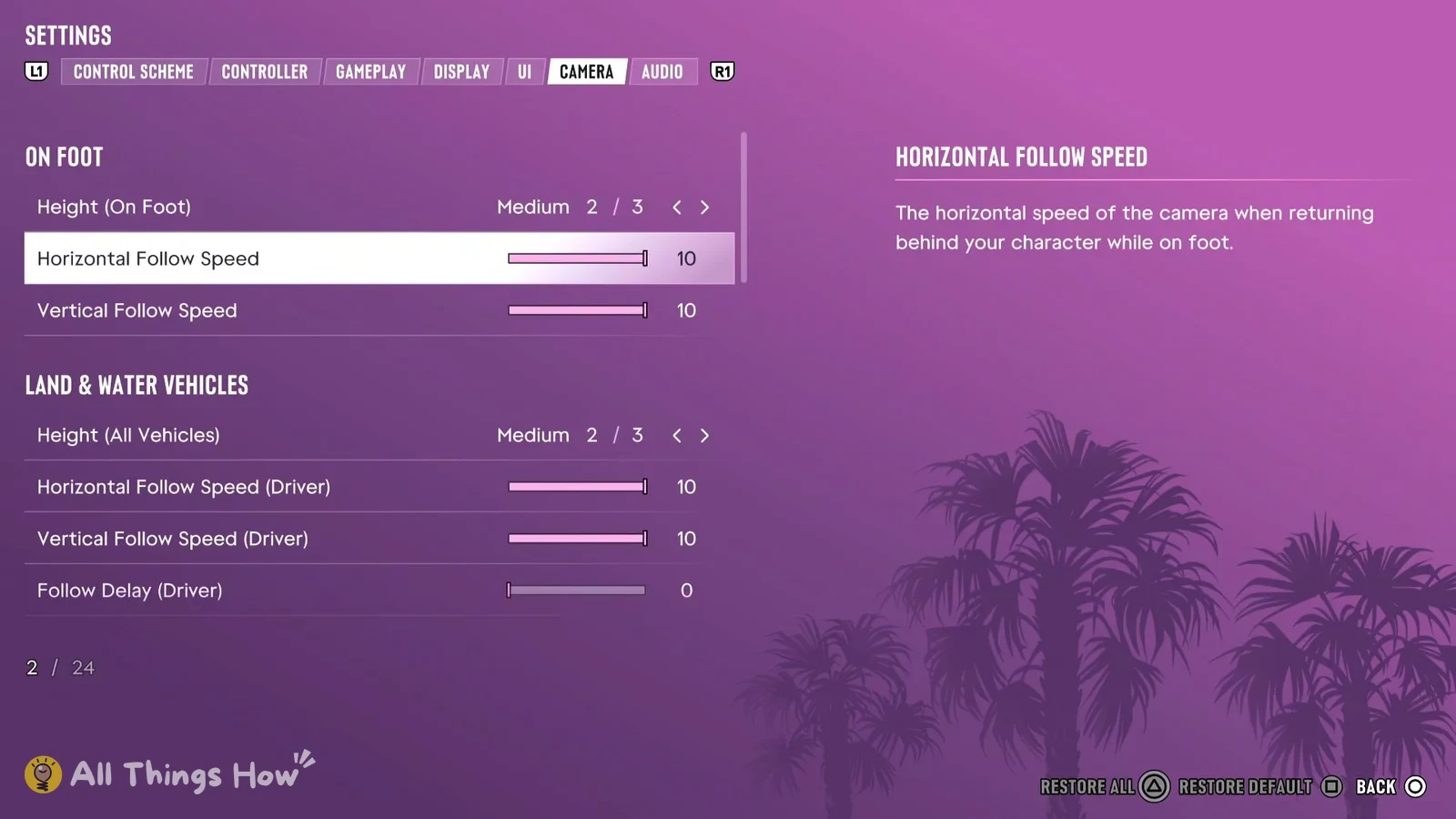
GTA 6 camera settings fill 24 rows, and the counter at the bottom left shows where you stand, starting at 1 / 24. If you change something and want it back, press Square to put the highlighted row back to its default. Triangle runs Restore All, which resets the whole tab at once, so use Triangle only when you mean to wipe every camera change.
Turn Off Camera Shake
GTA 6 camera settings put Camera Shake, Weapon Sway and Camera Bob together in the Comfort group, partway down the Camera tab. Camera Shake and Weapon Sway work as simple On and Off toggles, and both start on. Highlight one and switch it to Off, and the effect stops right away. Camera Bob works differently. Camera Bob runs as a slider, not a toggle, and it starts at 10, so you can lower it by steps instead of switching it on or off.
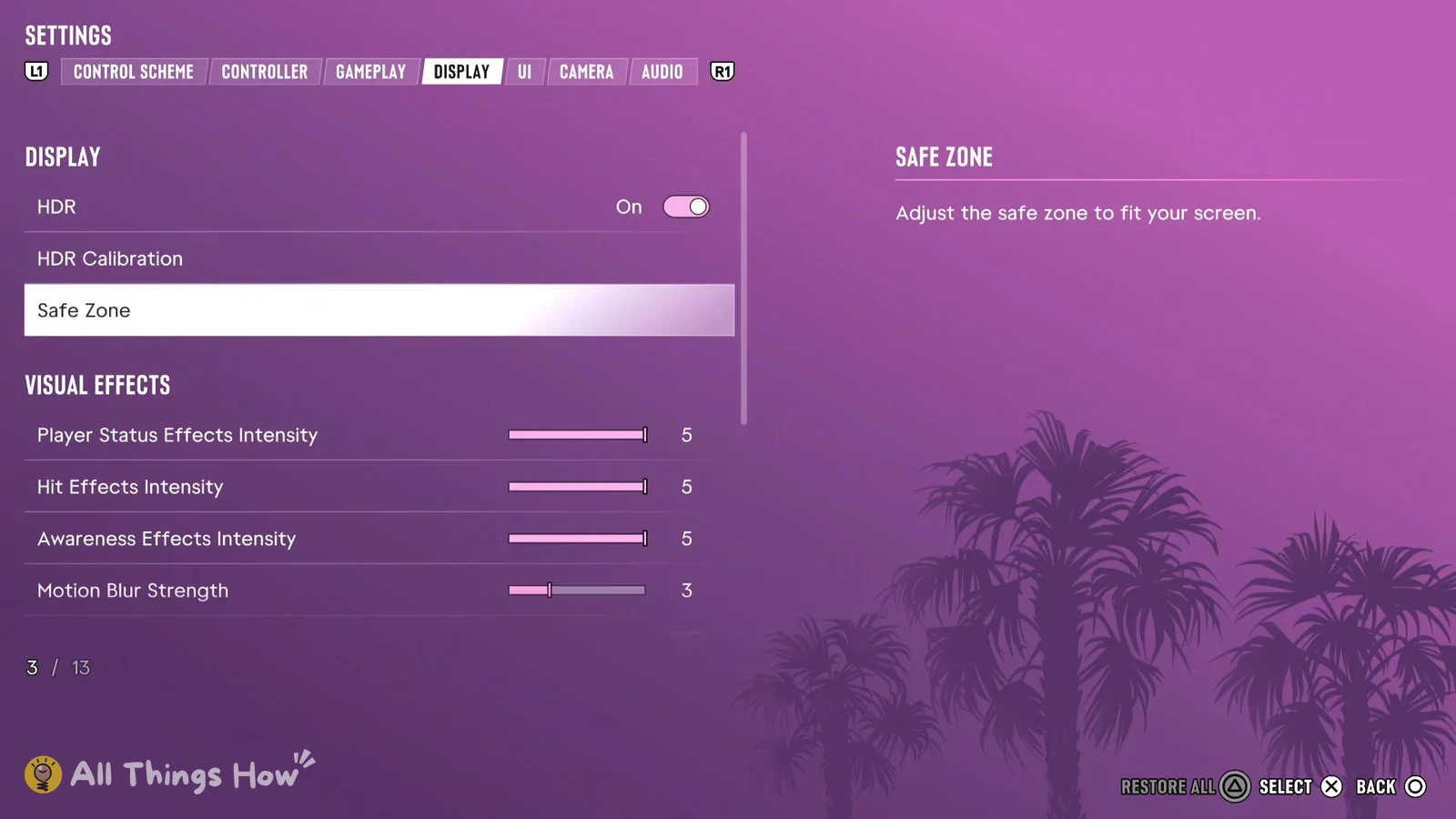
GTA 6 camera settings also touch two more screen motion options in other tabs. Open Reticle in the UI tab to find Persistent Center Dot. Motion Blur Strength sits in the Display tab and starts at 3.
GTA 6 camera settings keep two more rows in the Comfort group worth a look. The Comfort group also holds Camera Preferences, which stays on by default. The game says it remembers your camera preferences in different situations, such as for on foot, vehicles, bikes, boats, or aircraft. Phone Display sits in the same group and stays set to Default, the first of two choices.
Camera Height Defaults
GTA 6 camera settings start from the values below on a fresh install, in the order they show up in the Camera tab. GTA 6 camera settings use Medium height in two places, follow speeds of 10 on foot and for the driver, and much lower numbers for passengers, aircraft, and underwater.
| Group | Setting | Default |
|---|---|---|
| On Foot | Height (On Foot) | Medium (2 of 3) |
| On Foot | Horizontal Follow Speed | 10 |
| On Foot | Vertical Follow Speed | 10 |
| Land and Water Vehicles | Height (All Vehicles) | Medium (2 of 3) |
| Land and Water Vehicles | Horizontal Follow Speed (Driver) | 10 |
| Land and Water Vehicles | Vertical Follow Speed (Driver) | 10 |
| Land and Water Vehicles | Follow Delay (Driver) | 0 |
| Land and Water Vehicles | Horizontal Follow Speed (Passenger) | 4 |
| Land and Water Vehicles | Vertical Follow Speed (Passenger) | 4 |
| Land and Water Vehicles | Follow Delay (Passenger) | 10 |
| Comfort | Camera Preferences | On |
| Comfort | Weapon Sway | On |
| Comfort | Camera Shake | On |
| Comfort | Camera Bob | 10 (slider) |
| Comfort | Phone Display | Default (1 of 2) |
| Aircraft | Horizontal Follow Speed | 5 |
| Aircraft | Vertical Follow Speed | 5 |
| Aircraft | Follow Roll | On |
| Aircraft | Follow Roll Speed | 5 |
| Aircraft | Roll Deadzone Range | 10 |
| Underwater | Horizontal Follow Speed | 2 |
GTA 6 camera settings describe Height (On Foot) as the camera height while on foot, and Height (All Vehicles) sets the same thing for vehicles. Both start at Medium, the middle of three choices.
GTA 6 camera settings start the on foot and driver follow speeds at 10, which already tops their range, so you can only slow them down from there. Passenger seats start much lower at 4, with a Follow Delay of 10 compared with the driver 0. In aircraft, the horizontal slider covers the horizontal speed of the camera when returning behind your character while flying an aircraft, and both aircraft follow speeds start at 5. Underwater, the description covers the horizontal speed of the camera when returning behind your character while underwater, and it starts at 2.
Sensitivity Lives Elsewhere
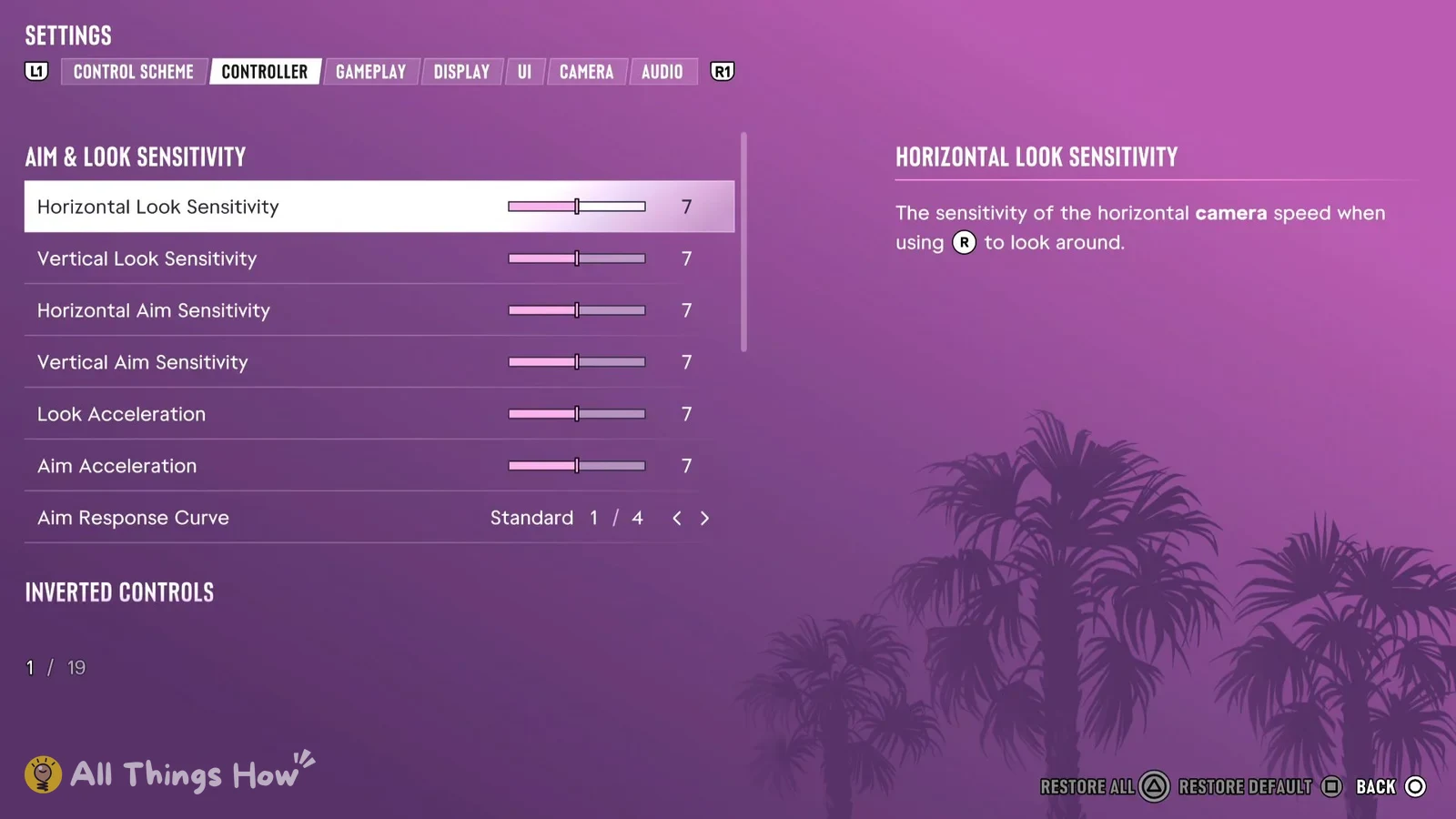
GTA 6 camera settings do not hold look and aim sensitivity. Look and aim sensitivity settings sit under Controller rather than Camera. Horizontal and Vertical Look Sensitivity, Horizontal and Vertical Aim Sensitivity, Look Acceleration, and Aim Acceleration all begin at 7. Aim Response Curve starts on Standard, the first of four choices. A Controller group called Inverted Controls also sits in that tab. Using the Default control scheme, pressing R3 makes you Look Behind while on foot.
GTA 6 camera settings reward one more habit before you close the menu. GTA 6 camera settings differ by situation, and a value that feels right while walking can feel wrong while driving at speed. Try to test the exact moment that made you open Settings in the first place. Must you touch every row to get a good view. No, and in my view two or three changes cover most players.