GTA 6: How to Mute Licensed Music for Streaming (PS5 Audio Tab)
GTA 6 can mute licensed music from the Audio tab in Settings, a toggle streamers should switch on before going live to avoid copyright strikes.
Mute Licensed Music
GTA 6 has a toggle that cuts licensed music from the game audio, and GTA 6 Mute Licensed Music sits in the Settings menu on PS5. GTA 6 Mute Licensed Music starts switched off on a fresh install, so you need to turn it on yourself before you start streaming. GTA 6 streamers who skip this step risk a copyright strike on their broadcast, because the radio and story scenes carry real licensed tracks, and the platforms flag those tracks fast. Try to flip the switch before you go live.
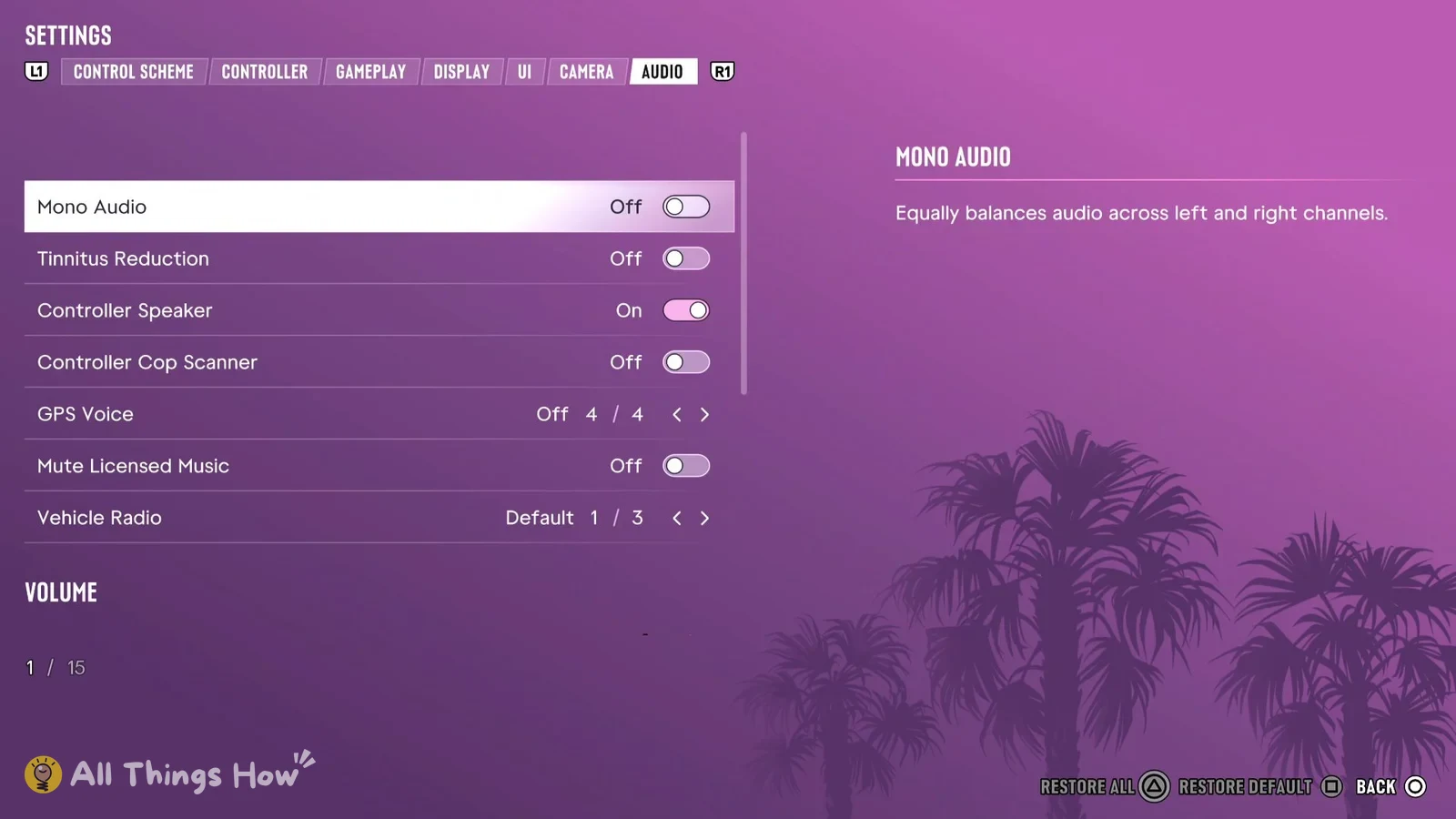
GTA 6 Mute Licensed Music turns on in a few presses. GTA 6 players should pause the game, open Settings, press R1 to reach the Audio tab, which is the seventh tab, then highlight Mute Licensed Music and set it to On. GTA 6 Mute Licensed Music row reads On once the setting runs active, and the game will cut licensed tracks from that point on.
Turn On Mute Licensed Music
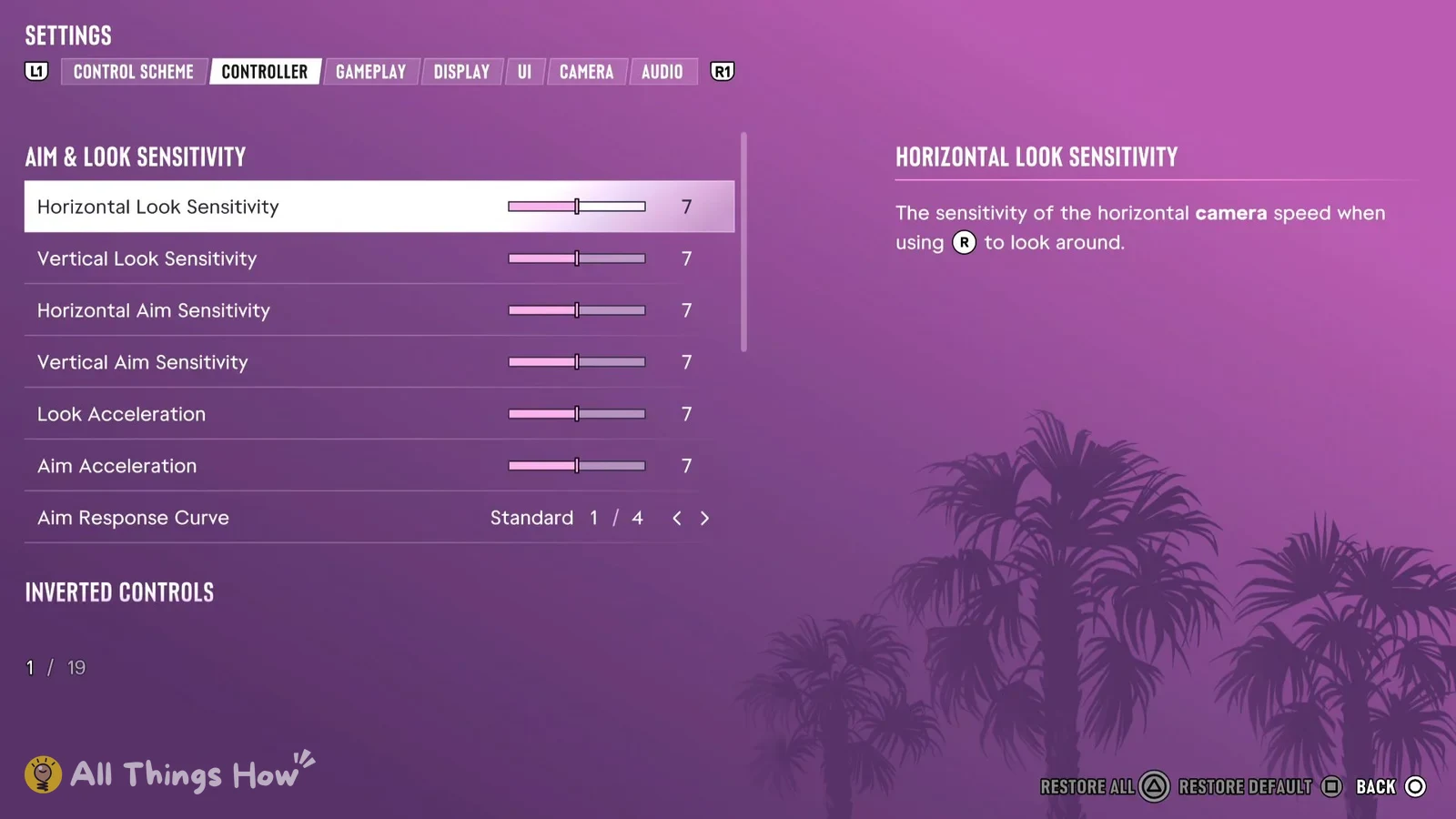
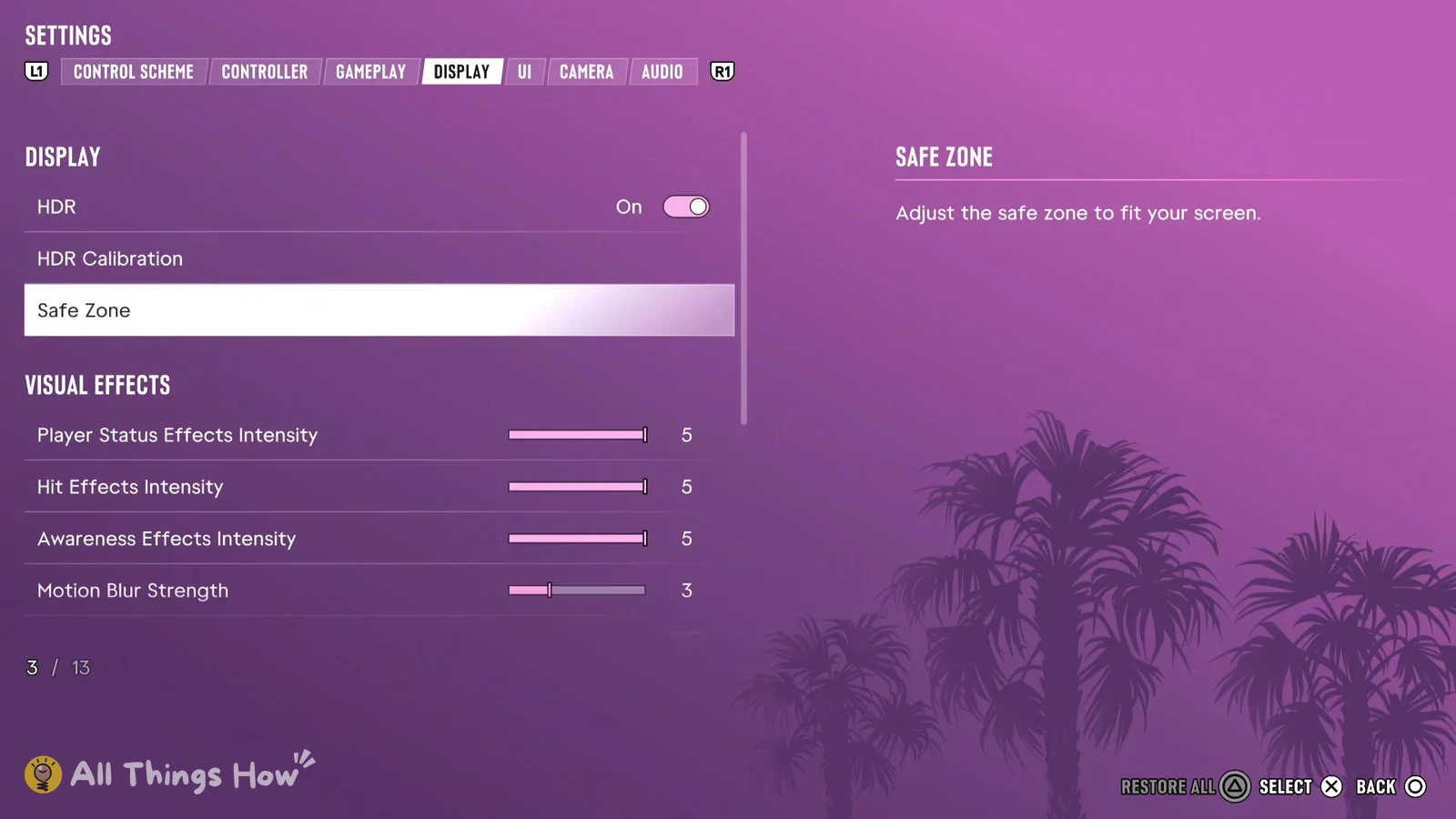
GTA 6 Mute Licensed Music lives in the Audio tab, and GTA 6 players reach it by pausing the game and choosing Settings from the pause menu. GTA 6 Settings tabs run from Control Scheme to Controller, then Gameplay and Display, followed by UI, Camera, and Audio. GTA 6 Audio tab sits last in that row, and the tab order never changes, so you can find it blind after a few visits. GTA 6 players should press R1 to move right through the tabs until Audio is selected, and since Audio is the seventh tab, you will press R1 six times from Control Scheme. GTA 6 Audio tab opens on the SETUP group at the top, and GTA 6 Mute Licensed Music sits as the sixth row in that group, just above Vehicle Radio.
GTA 6 Mute Licensed Music switches from Off to On with a left or right press, and GTA 6 players will know it worked when the row reads On. GTA 6 game shows a description for the row while it stays highlighted, and that description reads: "Mutes any licensed music. Captions will still display for music when turned on and licensed music is muted." GTA 6 Closed Captions starts Off by default and offers four choices, and if you turn captions on there, music captions keep showing up on screen even while licensed music stays muted. GTA 6 players who change their mind can highlight the row and press Square to put it back to its default, which is Off, and that restore works on any row in Settings.
GTA 6 streamers who want the game quieter overall can also pull the Music slider down from 10, and that slider sits in the VOLUME group below the SETUP rows. GTA 6 Music slider works on its own, and Mute Licensed Music works on its own, so the two controls stack rather than replace each other. Could you rely on the slider alone? You could lower the music to nothing, though the mute toggle gives a cleaner result, since it removes the licensed tracks while keeping the score audible, and I think most streamers will want both the toggle on and the slider at a comfortable level.
Audio Tab Defaults
GTA 6 Audio tab splits into two groups, and GTA 6 SETUP group holds the toggles and choice rows, including Mute Licensed Music, while GTA 6 VOLUME group holds the sliders. GTA 6 Audio tab defaults below show what each row reads on a fresh install, and GTA 6 players can use this table as a reference when they reset a row or check whether something changed. GTA 6 Mono Audio starts Off, GTA 6 Tinnitus Reduction starts Off, and GTA 6 Controller Speaker starts On. GTA 6 Controller Cop Scanner starts Off, GTA 6 GPS Voice starts Off with four choices, and GTA 6 Mute Licensed Music starts Off. GTA 6 Vehicle Radio starts on Default with three choices, and GTA 6 volume sliders all start at 10, which is the top of the bar.
| Setting | Group | Default |
|---|---|---|
| Mono Audio | SETUP | Off |
| Tinnitus Reduction | SETUP | Off |
| Controller Speaker | SETUP | On |
| Controller Cop Scanner | SETUP | Off |
| GPS Voice | SETUP | Off (4 choices) |
| Mute Licensed Music | SETUP | Off |
| Vehicle Radio | SETUP | Default (3 choices) |
| Master Volume | VOLUME | 10 |
| SFX | VOLUME | 10 |
| UI | VOLUME | 10 |
| Dialogue | VOLUME | 10 |
| Music | VOLUME | 10 |
| Media | VOLUME | 10 |
GTA 6 Mono Audio carries an in-game description that reads "Equally balances audio across left and right channels." GTA 6 Dialogue slider carries the description "The volume of the dialogue." GTA 6 volume sliders at 10 mean the game ships at full volume across the board, so players who find the mix loud should pull Master Volume down first and then tune the rest. Must you touch every row? You must not, since the defaults suit most players, and the mute toggle is the one row that matters for streaming, with the Music slider as a backup when a licensed track slips through a scene the toggle does not cover.