GTA 6 on PS5: How to Turn Off Adaptive Triggers and Change Sensitivity
Every GTA 6 controller option lives in the Controller tab, where you can switch off both DualSense adaptive trigger toggles and set sensitivity.
Controller Settings
GTA 6 keeps all of its PS5 controller options on one tab in the Settings menu, and GTA 6 Controller tab holds the look and aim sensitivity sliders, inverted camera options, stick deadzones, and the two adaptive trigger toggles for the DualSense. GTA 6 controller changes need no trip to the PS5 system settings, since every row lives inside the game.
GTA 6 adaptive triggers turn off from the pause menu, and GTA 6 players should go to Settings and press R1 once to open Controller. GTA 6 Controller tab holds the trigger toggles near the bottom, so scroll down to the last options, then turn Adaptive Triggers Resistance and Adaptive Triggers Vibration Off. Try to turn off both toggles, since one left on keeps part of the effect. A partial change could leave the triggers feeling uneven.
Where Controller Tab Sits
GTA 6 Controller tab sits one press away from the start of Settings, and GTA 6 players should open Settings from the pause menu. GTA 6 Settings starts on Control Scheme, and pressing R1 once switches to Controller, the next tab. GTA 6 Controller tab rows come in three groups from top to bottom: the look and aim sensitivity sliders, then Inverted Controls, then DualSense Wireless Controller Features.
GTA 6 Controller tab groups follow a clear order, and GTA 6 sensitivity sliders sit at the top where players look first. GTA 6 tab order never changes, so the layout becomes muscle memory after a few visits.
Turn Off Adaptive Triggers
GTA 6 adaptive triggers split into two toggles, and GTA 6 Adaptive Triggers Resistance and Adaptive Triggers Vibration both start On by default. GTA 6 trigger switch starts by pausing the game, opening Settings, and pressing R1 once to reach the Controller tab. GTA 6 Adaptive Triggers Resistance row takes the first change, switching from On to Off.
GTA 6 trigger change shows its result at once, since both rows read Off when the change takes hold. GTA 6 players who want less general rumble rather than less trigger feel should lower the Vibration and Haptics Strength slider in the same group instead, and that slider starts at 10 by default, which puts it at the top of the bar.
Change Look and Aim Sensitivity
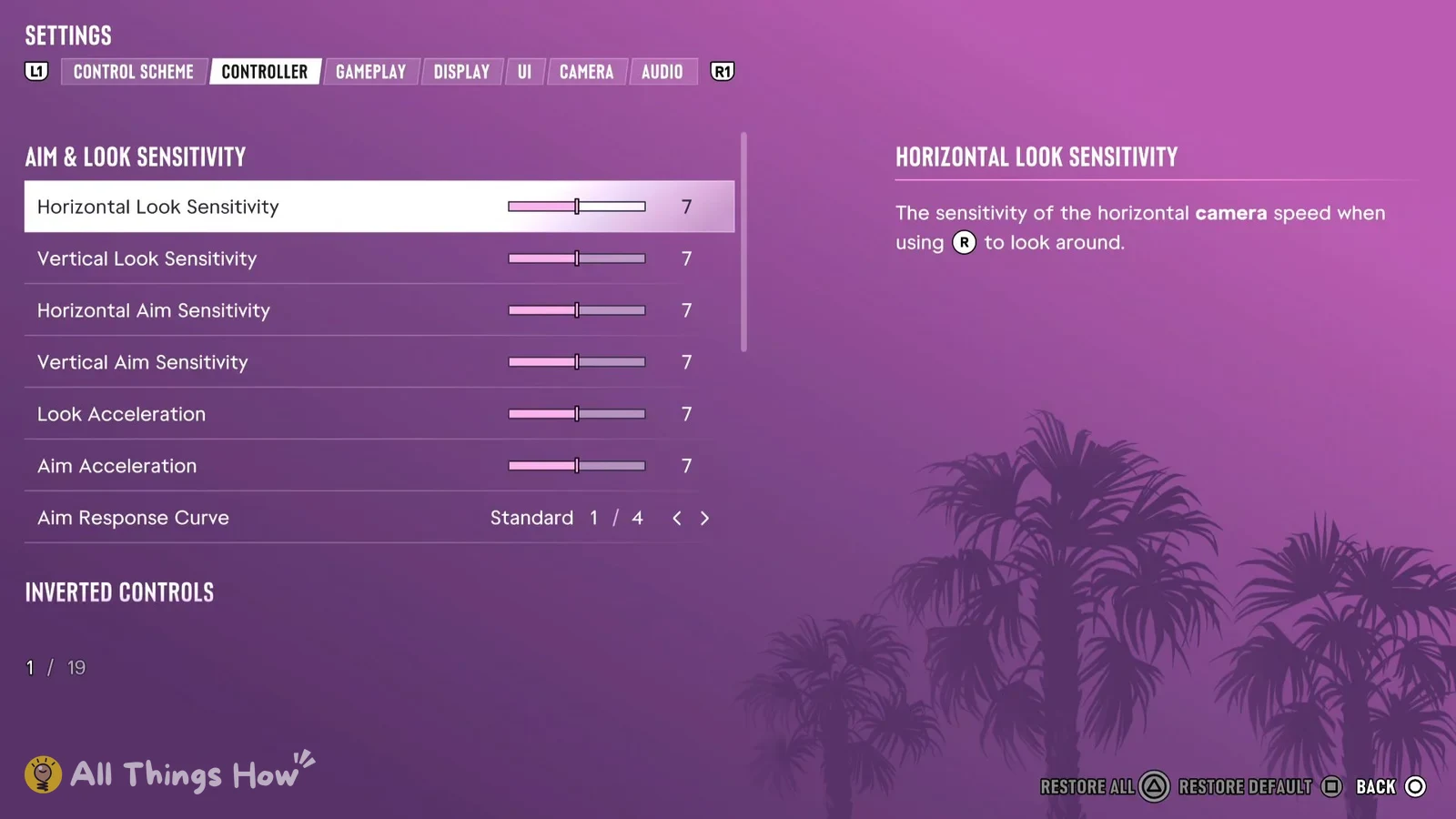
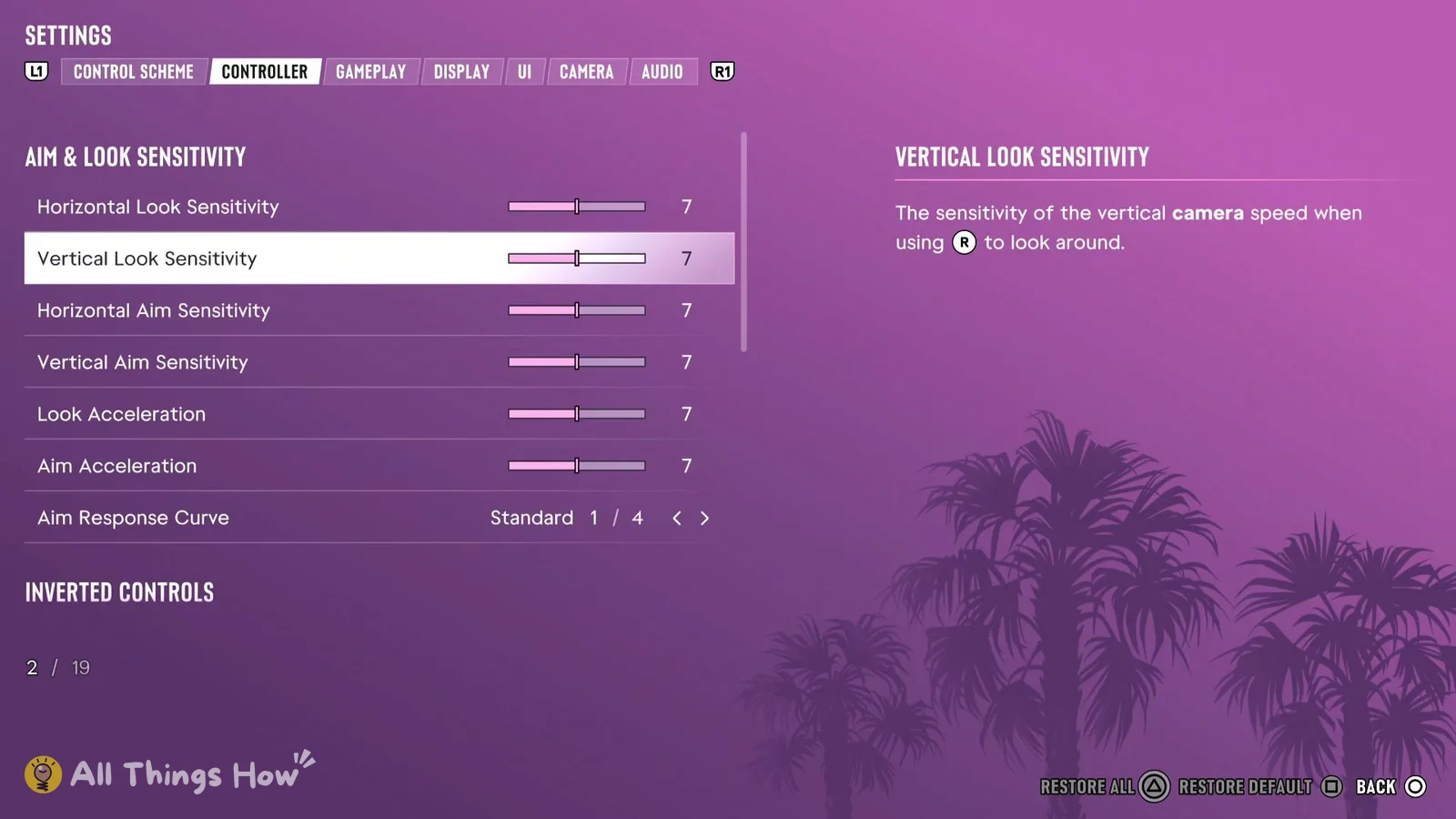
GTA 6 sensitivity sliders sit as the first rows on the Controller tab, and GTA 6 six sliders start at 7, which sits about halfway along each bar, so you can go faster or slower from there. GTA 6 Horizontal Look Sensitivity carries the description "The sensitivity of the horizontal camera speed when using the right stick to look around." GTA 6 Horizontal Aim Sensitivity and Vertical Aim Sensitivity form a separate pair from the Look sliders, so aiming speed can run on its own numbers.
GTA 6 sensitivity has no right number, since the best value depends on how fast you like the camera to move. GTA 6 row restore works with Square, which puts the highlighted row back to 7, so a bad experiment costs one press to undo.
Invert Camera and Aircraft Controls
GTA 6 Inverted Controls group sits in the middle of the Controller tab, and GTA 6 players who want an inverted camera should go to the Look row and change it from Default to one of the other choices. GTA 6 Aircraft Movement works as a plain On and Off toggle, and it reads On by default. GTA 6 game describes Aircraft Movement as a toggle that "Inverts the vertical movement of the left stick when controlling an aircraft."
I think the aircraft toggle causes the most confusion of the three, because it ships On and new pilots blame the plane before they blame the setting, and one flip fixes the whole complaint.
Controller Tab Defaults
GTA 6 Controller tab defaults below show the values on a fresh install, in the order the rows appear on screen. GTA 6 Look and Aim Sensitivity group holds six sliders at 7 plus the Aim Response Curve at Standard (1 of 4). GTA 6 Inverted Controls group holds Look, Movement, and 3D Map Rotation at Default (1 of 4), with Aircraft Movement On.
Look and Aim Sensitivity
| Setting | Default |
|---|---|
| Horizontal Look Sensitivity | 7 |
| Vertical Look Sensitivity | 7 |
| Horizontal Aim Sensitivity | 7 |
| Vertical Aim Sensitivity | 7 |
| Look Acceleration | 7 |
| Aim Acceleration | 7 |
| Aim Response Curve | Standard (1 of 4) |
Inverted Controls
| Setting | Default |
|---|---|
| Look | Default (1 of 4) |
| Movement | Default (1 of 4) |
| 3D Map Rotation | Default (1 of 4) |
| Aircraft Movement | On |
DualSense Features
| Setting | Default |
|---|---|
| Vibration & Haptics Strength | 10 |
| Deadzone (Left Stick) | 4 |
| Deadzone (Right Stick) | 4 |
| Adaptive Triggers Resistance | On |
| Adaptive Triggers Vibration | On |
| Adaptive Speed Limiter | On |
| Touch Pad Button | Map (1 of 2) |
GTA 6 Triangle press on the Controller tab brings every row back to the values above in one go. GTA 6 players who lose track of their changes can use that reset as a clean slate, then tune one slider at a time from the defaults.