GTA 6 PS5 Controls Sprint With L3 Guide
GTA 6 moved running and sprinting to L3 on PS5, leaving Cross to jump, and the Classic control scheme puts sprint back on Cross if you prefer it.
On Foot Controls
PS5 controls in GTA 6 catch old players out, because a thumb trained by older GTA games goes straight to X to run. In GTA 6 on PS5, that makes your character jump. The game moved running to the left stick, and the first setup screen tells you so: "The default controls for GTAVI now use L3 to run and sprint, but can be changed at any time."
PS5 controls in GTA 6 have a short answer for running. Press L3 (push the left stick in) to run, then press L3 again to sprint. If you want X to run instead, go to Settings > Control Scheme and pick "Classic".
PS5 controls in GTA 6 put the buttons you use most while walking around in one clear set. Running sits on L3, X handles jumping and climbing, and Circle crouches.
In play, the help box reads: Press L3 to run. Press L3 again to sprint.
| Button | Action |
|---|---|
| Left stick | Move |
| L3 | Run |
| Right stick | Look |
| R3 | Look behind |
| L1 | Holster |
| L2 | Aim / Interact |
| R1 | Cover |
| R2 | Shoot |
| Triangle | Interact |
| Square | Melee |
| Circle | Crouch |
| Cross (X) | Jump / Climb |
| D-pad up | Cellphone |
| D-pad left | Radio controls |
| D-pad down | Objective / Minimap |
| D-pad right | Detonate explosives |
| Touch pad | Map |
| Options | Pause |
The touch pad opens the full map, while D-pad down brings up your objective and the minimap.
Aiming Controls
PS5 controls in GTA 6 change a few buttons once you hold L2 to aim. Triangle stops being interact and becomes a quick weapon swap, R3 switches from looking behind to zoom and throw path, and the D-pad turns into scope and shoulder controls.
| Button | Action while aiming |
|---|---|
| L2 | Aim |
| R2 | Shoot |
| R1 | Cover |
| Triangle | Quick swap weapon |
| Square | Melee |
| Circle | Crouch |
| R3 | Zoom / Throw path |
| L3 | Run |
| L1 | Holster |
| D-pad up | Zoom scope in |
| D-pad left | Switch shoulder |
| D-pad down | Zoom scope out |
| D-pad right | Detonate explosives |
L3 still runs while you're aiming, so you can keep moving fast with your weapon up. D-pad left swaps which shoulder the camera sits over, which helps when you're peeking out from one side of cover.
Driving Cars and Boats
PS5 controls in GTA 6 group cars and boats together under "Land / Water Vehicles", so the same layout works for both. R2 is gas, L2 brakes and reverses, and X is the handbrake.
| Button | Action in a vehicle |
|---|---|
| R2 | Accelerate |
| L2 | Brake / Reverse |
| Cross (X) | Handbrake |
| Left stick | Turn |
| R1 | Shoot |
| L1 | Holster |
| L3 | Horn / Nitrous |
| Triangle | Exit vehicle |
| Circle | Headlights |
| Square | Melee |
| R3 | Look behind |
| Right stick | Look |
| D-pad up | Cellphone |
| D-pad left | Indicate left |
| D-pad right | Indicate right |
| D-pad down | Objective / Minimap |
In a vehicle, L3 is no longer run. It becomes the horn and nitrous button. Shooting moves from R2 to R1, since R2 is your accelerator, and D-pad left and right work your turn signals.
Classic Scheme Run on X
PS5 controls in GTA 6 offer a Classic scheme that puts running back on X and shuffles three other on-foot buttons to make room. Here is what changes when you're walking around.
| Button | Default | Classic |
|---|---|---|
| Cross (X) | Jump / Climb | Run |
| Square | Melee | Jump / Climb |
| Circle | Crouch | Melee |
| L3 | Run | Crouch |
Everything else on foot stays where it is in Default. R2 still shoots, L2 still aims, R1 is still cover, Triangle is still interact, D-pad up still pulls out your phone and the touch pad still opens the map.
Change the Control Scheme
PS5 controls in GTA 6 give you three schemes to pick from: Default, Classic and Left-Handed. You can switch whenever you like, and it doesn't have to be done on the first setup screen.
Press Options to pause the game, then open Settings. This is the same Settings menu you saw at first start, so any choice you made there can be changed here.
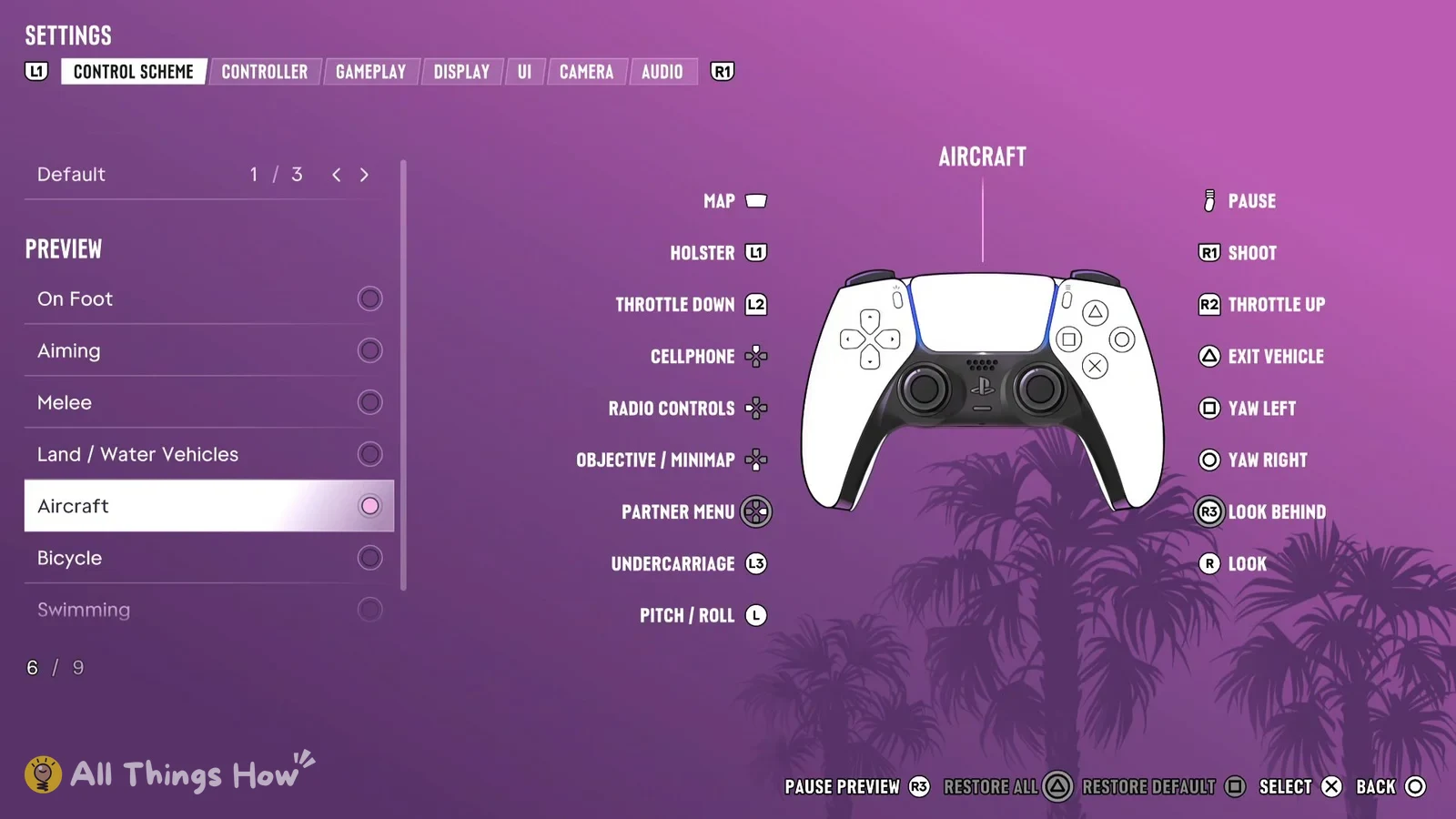
Go to the Control Scheme tab. It shows which scheme is active along with a counter, with Default listed as 1/3, Classic as 2/3 and Left-Handed as 3/3.
Cycle the scheme until it reads "Classic" if you want X to run, or leave it on Default to keep running on L3. The counter should read 2/3 when Classic is selected.
To make sure the change worked, check the previews in that tab. You'll see On Foot, Aiming, and Melee. The previews also cover Land / Water Vehicles, then Aircraft and Bicycle, followed by Swimming and Parachute. With Classic selected, the On Foot preview should show Run on X and Crouch on L3.
Once you're back in the game, press X while moving. If your character starts running instead of jumping, Classic is active.