GTA 6 Subtitles on PS5: How to Turn Them On and Change the Size
GTA 6 subtitles start switched off, and you can turn them on and choose a size at first start or later from the UI tab.
Subtitles on Console
GTA 6 starts with subtitles set to Off, and GTA 6 subtitles offer a size choice on a screen before the game starts. GTA 6 subtitles live in the pause menu Settings after that, in the UI tab, and every subtitle option sits there waiting. GTA 6 players who want text on screen can pick a size at first start or flip the rows in Settings later, and both paths lead to the same rows.
GTA 6 subtitles turn on through the pause menu, and GTA 6 players should pause, open Settings, press R1 to reach the UI tab, then go to Subtitles and Captions. GTA 6 Subtitles row takes the option you want, and GTA 6 Size row makes the text bigger. Try to set the size once and leave it. GTA 6 subtitle settings stay available at any time during play, so you never need to return to the title screen to change them.
Subtitle Size at First Start
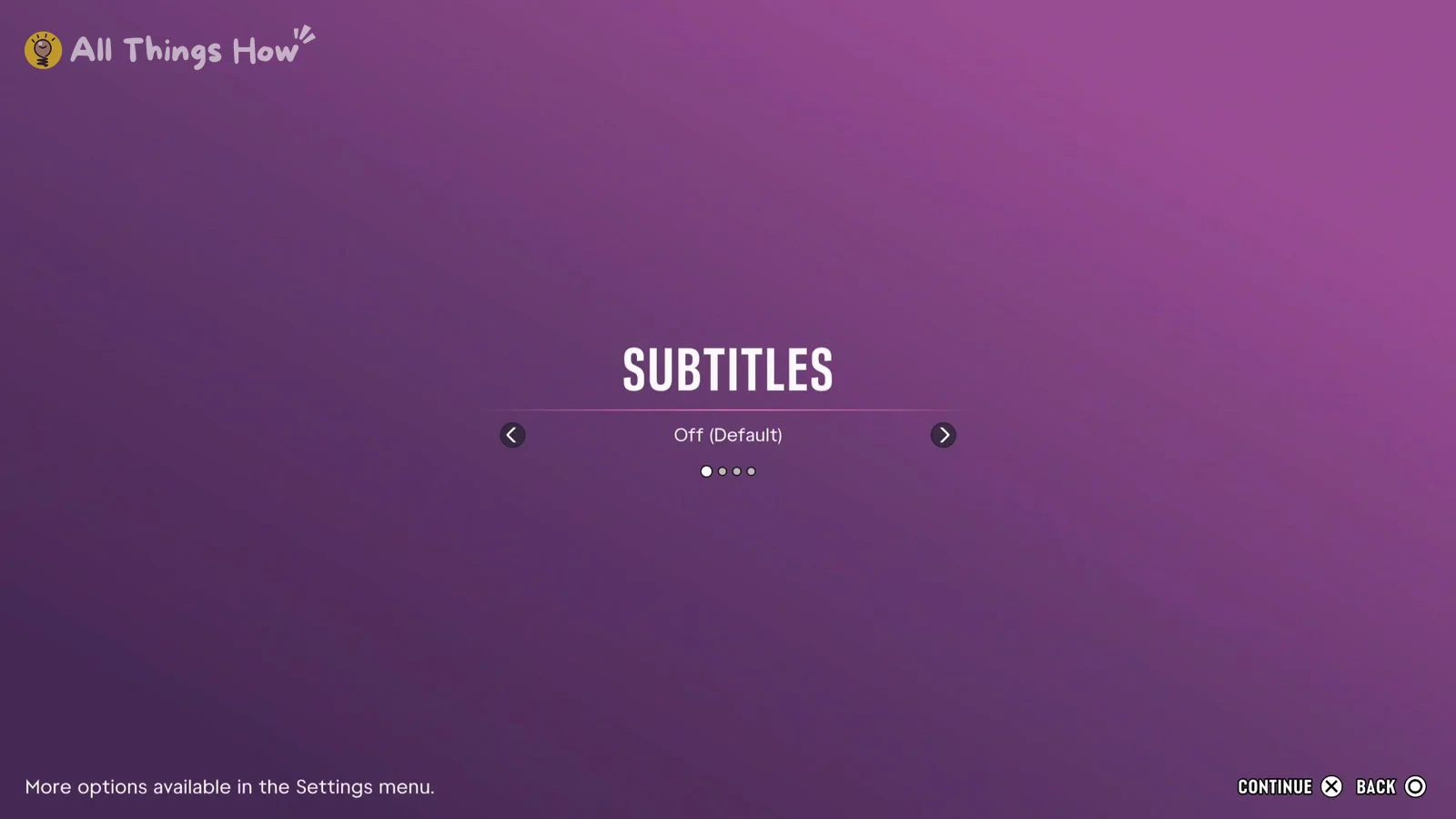
GTA 6 first-start SUBTITLES screen comes up before the game begins the first time you launch GTA 6 on PS5. GTA 6 SUBTITLES screen offers four choices: Off (Default), Small, Medium, and Large. GTA 6 players press left or right to change the choice, Cross to continue, or Circle to go back. GTA 6 screen adds the line "More options available in the Settings menu." GTA 6 first-start choice carries forward into Settings in a specific way, and GTA 6 players who pick a size on this screen will find the Subtitles row in Settings reading Mission Only afterward, which is the second of its three choices. GTA 6 Mission Only setting means subtitles appear for mission dialogue and stay off elsewhere, and that middle option suits players who want story text without subtitles on every passing line. Could you pick Large and regret it? You could change it in seconds from Settings, so the first-start choice never locks you in, and I think Medium hits the sweet spot for most living-room setups, with Large reserved for smaller text or farther couches.
Turn On Subtitles in Settings
GTA 6 subtitles switch on in Settings, and GTA 6 players should pause the game and open Settings at any time during play. GTA 6 Settings tabs cycle with R1 forward through Control Scheme, Controller, Gameplay, Display, UI, Camera, and Audio, and L1 takes you back one tab. GTA 6 UI tab holds the subtitle rows, and GTA 6 players should land on UI and scroll to SUBTITLES and CAPTIONS. GTA 6 SUBTITLES and CAPTIONS group comes right after Scaling and Readability, which makes it the second group in the UI tab. GTA 6 preview line reading "This is a subtitle." appears at the bottom of the screen, and that line lets you check how each change looks before you leave the menu. GTA 6 Subtitles row takes the option you want, and it offers three choices, with Mission Only among them, which is the setting you get after picking a size on the first-start screen. GTA 6 Size row sits below it, and it offers three choices for how big you want the text. GTA 6 Speaker Names row works as a simple on and off toggle, and GTA 6 Background row puts a backing behind subtitles and closed captions, and you can check how it looks on the sample line before you leave the menu. GTA 6 undo options sit on the same screen, since highlighting a row and pressing Square restores its default, and pressing Triangle restores all rows at once.
GTA 6 Speaker Names toggle adds a name tag to each line, which helps when two characters trade lines fast and the voices blur together. GTA 6 Size row changes the text alone, and it does not touch the UI text elsewhere, so players who want bigger menus need a different row.
Subtitles and Captions Settings
GTA 6 Subtitles and Captions group holds five rows, and GTA 6 table below shows what each row reads after you pick Medium on the first-start screen. GTA 6 Subtitles row reads Mission Only (2 of 3) with three choices. GTA 6 Closed Captions row reads Off (1 of 4) with four choices. GTA 6 Size row reads Medium (2 of 3) with three choices. GTA 6 Speaker Names row reads Off as an on and off toggle. GTA 6 Background row reads Off (1 of 3) with three choices. GTA 6 middle column in the table shows the value after first start, and the right column shows how many choices each row offers.
| Setting | Value after first start | Choices |
|---|---|---|
| Subtitles | Mission Only (2 of 3) | 3 |
| Closed Captions | Off (1 of 4) | 4 |
| Size | Medium (2 of 3) | 3 |
| Speaker Names | Off | On/off toggle |
| Background | Off (1 of 3) | 3 |
GTA 6 Closed Captions row stands on its own, separate from Subtitles, and GTA 6 Closed Captions covers sound cues and non-speech audio rather than spoken lines. GTA 6 Background row description reads "Choose the background for subtitles and closed captions. Off: No background." GTA 6 Background setting covers both kinds of text with one row, so a single choice shapes subtitles and closed captions together. GTA 6 players who want bigger subtitles must use the Size row under Subtitles and Captions, since UI Text Size changes menu text and leaves subtitle text alone.