How to Open the Map in GTA 6 and Set a Destination or Marker (PS5)
GTA 6 opens its map with the touch pad or the pause menu, where Cross sets a destination and Square drops a marker while Circle closes the screen.
Map Opening Guide
GTA 6 on PS5 offers two ways to open the map, and GTA 6 map opens through the touch pad or through the pause menu. GTA 6 map screen shows button prompts at the bottom right once it opens, and those prompts cover setting a destination and dropping a marker. GTA 6 map work takes seconds once you know the buttons, though new players often fumble the first few tries, since the touch pad does double duty and the pause menu hides the map behind a row that looks like any other. I think the touch pad route wins for speed, while the pause menu route wins for players who keep forgetting the touch pad exists.
GTA 6 map opens with a press of the touch pad, or GTA 6 players can press Options and pick Map from the pause menu. GTA 6 map cursor moves to a spot, then Cross sets the destination and Square adds a marker, while Circle exits the map. Try to use the touch pad first, since it opens the map in one press. You must move the ring over your destination before you press Cross.
Open Map and Set Destination
GTA 6 map opens straight from the touch pad, and GTA 6 players should press the touch pad to go directly to the map. GTA 6 pause menu offers the other route, since pressing Options pauses the game and Map sits as the first row in the pause menu. GTA 6 Map row comes already highlighted when the menu opens, so pressing Cross takes you to the map without any scrolling.
GTA 6 map cursor takes the shape of a ring at the screen center, and GTA 6 players should put that ring over the intended destination. GTA 6 active mission shows as a pink dot, and GTA 6 players should follow that dot when they want the next objective. GTA 6 search areas work differently, since an area you need to search for the objective shows shaded pink instead of a dot, and the shaded zone tells you to look around inside it rather than drive to a point.
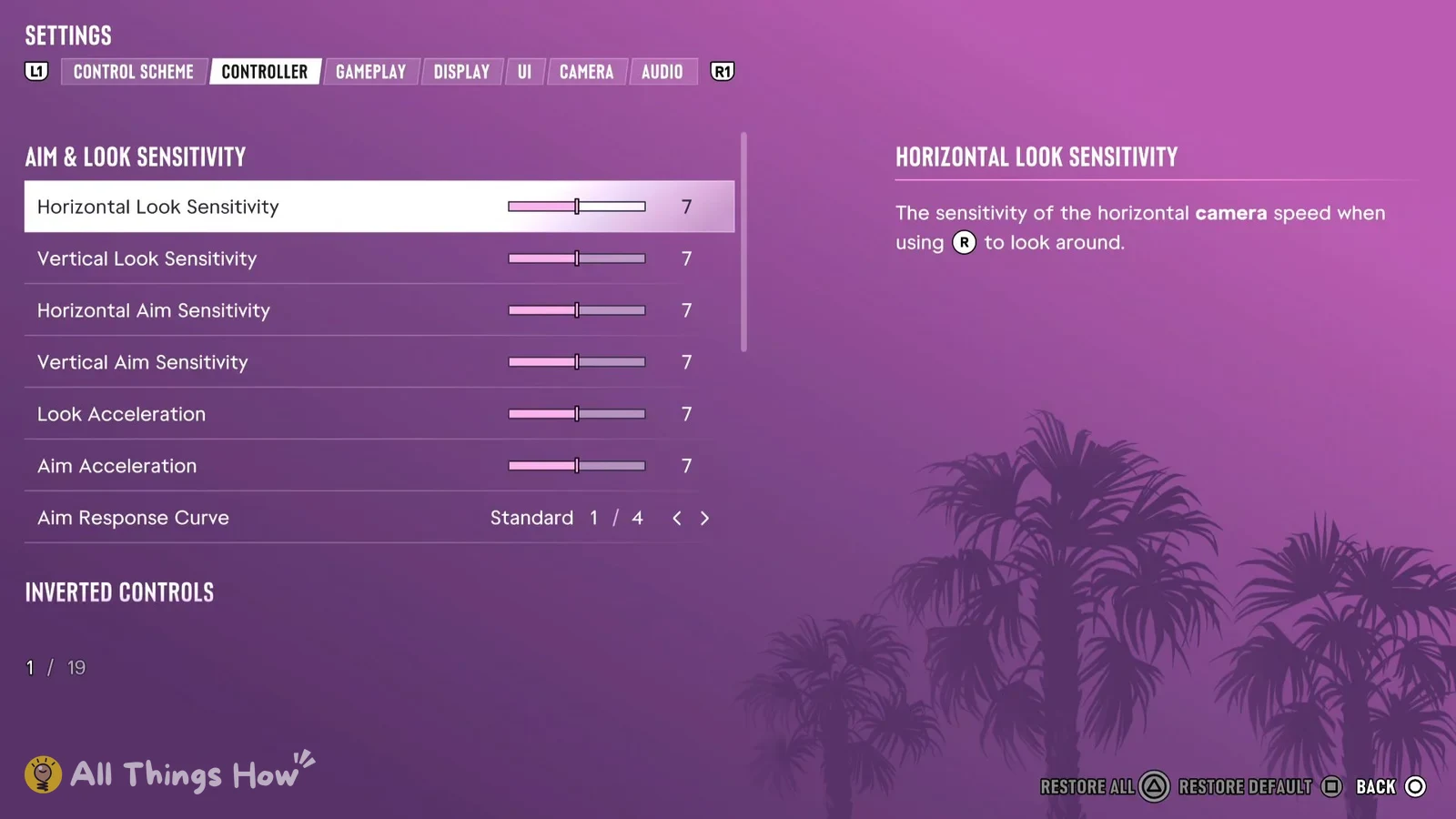
GTA 6 map screen lower-right prompt row lists Add Marker before Set Destination, and GTA 6 Cross selects Set Destination while Square adds a marker. GTA 6 players who scrolled away and lost track of where they are should press L3 to Recenter the map on the character. GTA 6 R3 switches the map to the 2D View, and the map opens in a tilted view by default, so the flat view takes one extra press. GTA 6 map closes with Circle, which exits the map and returns you to the game. GTA 6 touch pad button can change, and if the touch pad does not open the map, players should go to Settings, then Controller, and check the Touch Pad Button row. GTA 6 Touch Pad Button row reads Map by default and offers two choices, so it may have switched to the other one without you noticing.
Map Screen Layout
GTA 6 map screen buttons cover recentering, view switching, markers, destinations, exits, and tab switching, and GTA 6 table below lists each button with its prompt on the map. GTA 6 L3 triggers Recenter, GTA 6 R3 triggers 2D View, and GTA 6 Square triggers Add Marker. GTA 6 Cross triggers Set Destination, GTA 6 Circle triggers Exit, and GTA 6 L1 and R1 switch tabs.
| Button | Prompt on the map |
|---|---|
| L3 | Recenter |
| R3 | 2D View |
| Square | Add Marker |
| Cross | Set Destination |
| Circle | Exit |
| L1 / R1 | Switch tabs |
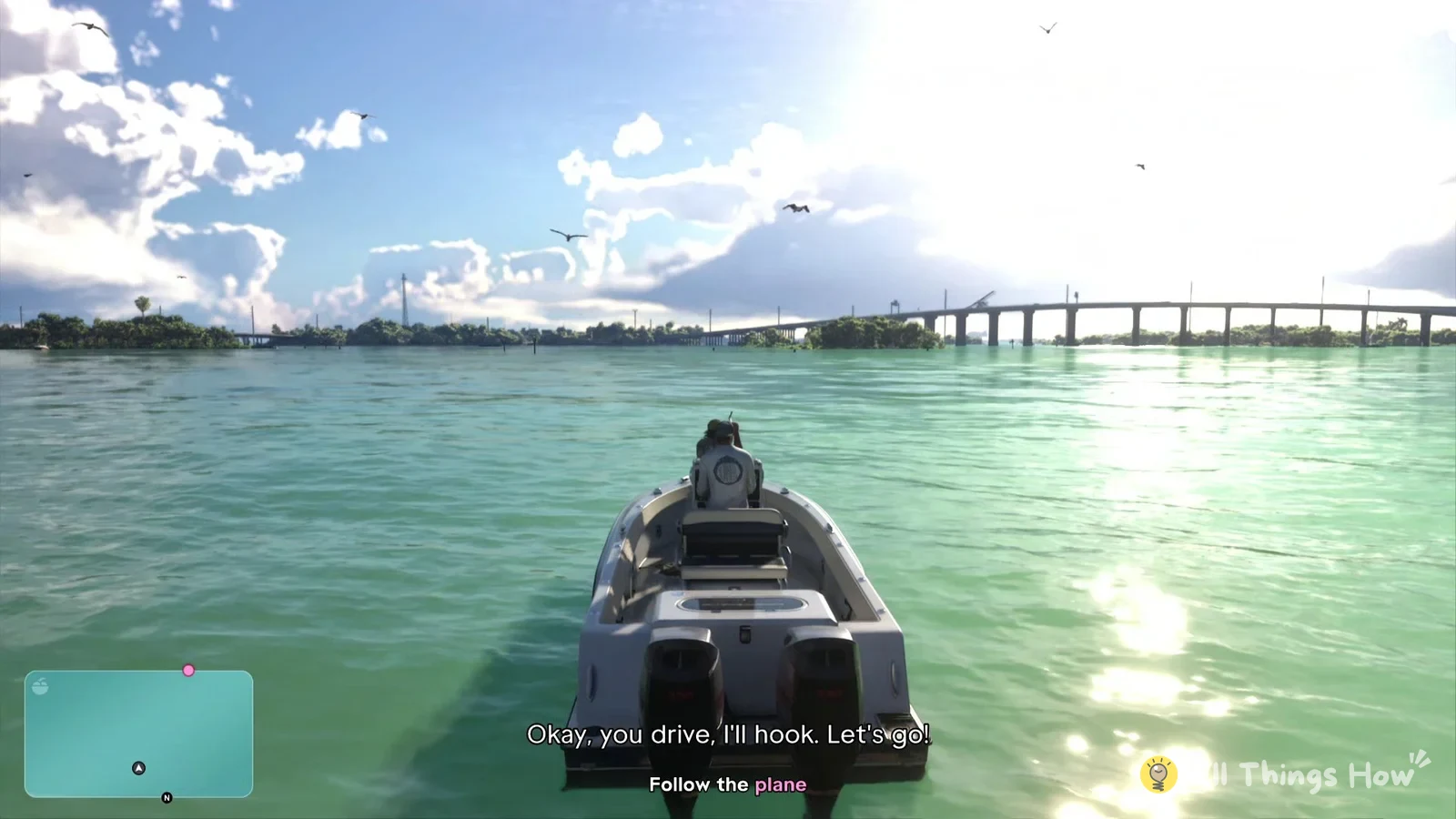
GTA 6 map screen holds more than prompts, and GTA 6 players should know what each corner shows. GTA 6 MAP, BRIEF, and PROGRESS appear as three tabs at the top center, and L1 and R1 sit on either side to switch between them. GTA 6 in-game time sits at the top left, with a card under it showing the current mission name and a one-line summary, such as "GONE FISHING - Help Donnie skim some bricks off a shipment." GTA 6 current objective sits at the bottom center, the same line you see while playing, like "Collect the packages" or "Search the camp for Donnie". GTA 6 map covers unexplored parts with a dark overlay, so the fog tells you where you have not been yet. GTA 6 area names appear in faint text on the map itself, such as "Pelican Valley", and those labels help you learn the state by sight rather than by menu.
GTA 6 map display settings live in the UI tab in Settings, and GTA 6 GPS Route and GPS Turn Indicators run on by default. GTA 6 minimap draws the route in pink as you head to a mission destination, and it shows the distance remaining beside the line. GTA 6 box above the minimap displays the next turn, so you can read the turn before the voice or the line tells you. GTA 6 map and minimap work as a pair, and the full map plans the route while the minimap walks you through it. Could the pink search shading confuse you the first time? It could, until you learn that a shaded zone means search here rather than drive there, and after that the pink patch reads as plain as the pink dot.